
Zoom Meetings + Highperformr
Connect your Zoom account and let Highperformr handle the rest — from pre-call account research to post-call transcripts, summaries, and AI-powered scorecards. Your full meeting workflow, automated.
What this integration does
Highperformr’s Meeting Intelligence connects directly with Zoom Meetings to automate the entire meeting workflow for your sales and GTM team. Once your Zoom account is linked, Highperformr’s AI Notetaker joins your calls automatically, processes the recording, and surfaces everything your team needs to follow up faster — all inside your Meeting Library.
Before the call
Automated account research brief delivered to meeting attendees
During the call
AI Notetaker joins and records your Zoom meeting automatically
After the call
Transcript, AI summary, recap email & sales scorecard delivered
Before you begin
Highperformr account
- Meeting Intelligence is available on all paid Highperformr plans at no additional charge
- Processing each meeting consumes credits from your workspace balance — check your balance in the top-right corner of your workspace before meetings run. Insufficient credits will cause processing to be skipped
Zoom account
- Any paid Zoom plan (Pro, Business, or Enterprise) is supported
- Cloud recording must be enabled on your Zoom account — Highperformr uses the cloud recording to generate transcripts and summaries
- If your organization restricts third-party app installs, your Zoom administrator will need to approve Highperformr from the Zoom App Marketplace before users can connect
Connecting your Zoom account
Any member of your Highperformr workspace can connect their own Zoom account by following these steps — no admin privileges required.
- 1
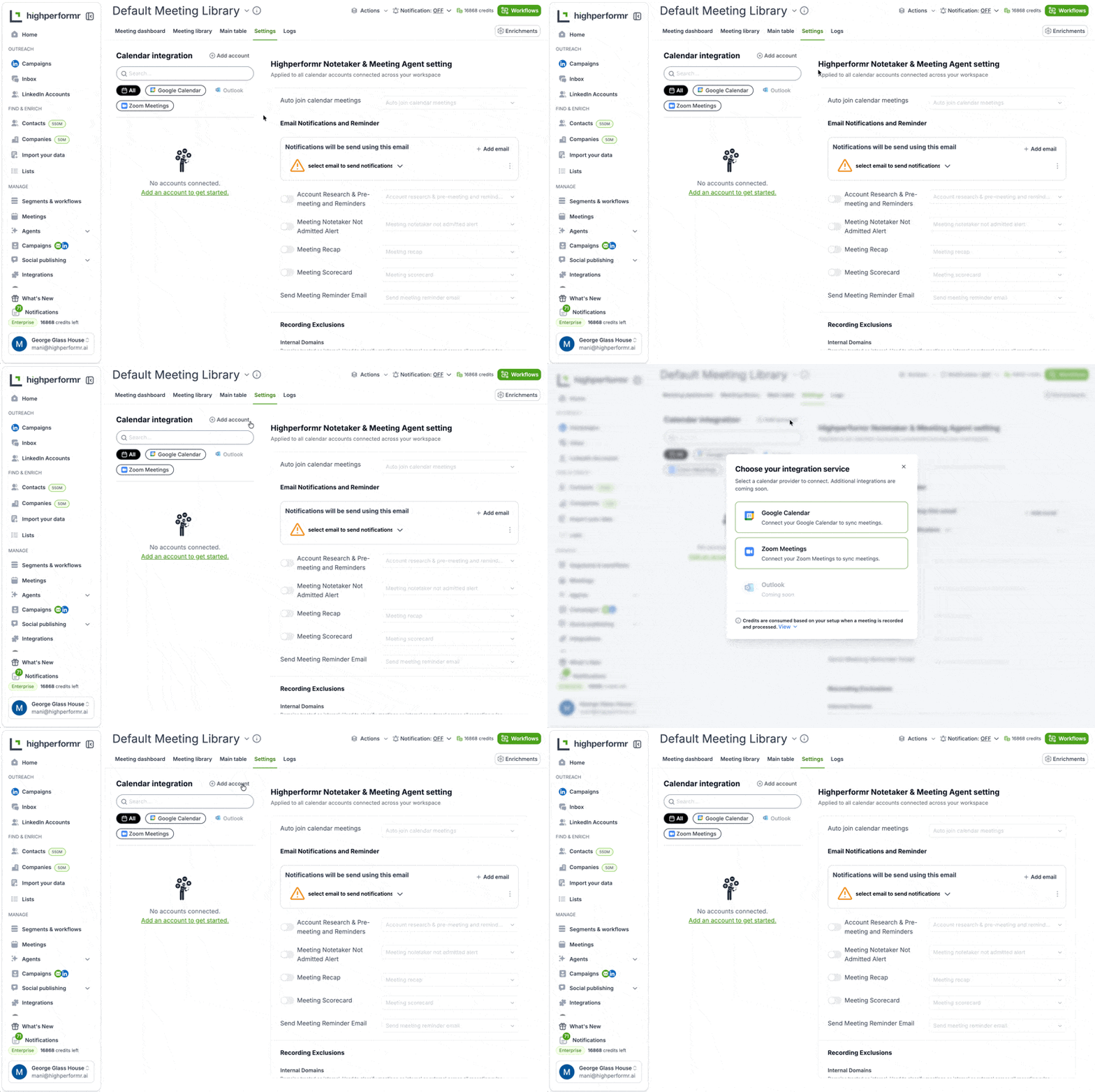
From the left navigation, click Meetings
- 2
Inside your Meeting Library, go to the Settings tab
- 3
Under Calendar Integration, click + Add account
- 4
Select Zoom Meetings from the list of calendar providers
- 5
You’ll be redirected to Zoom’s authorization screen. Review the permissions and click Allow
- 6
You’ll be redirected back to Highperformr. Your Zoom account will appear listed under Calendar Integration, confirming the connection is live
Team note: Any team member in your workspace can connect their own Zoom account by following the same steps. No separate workspaces or accounts needed — everyone operates within the shared workspace.
Before, during & after a call
Before the call
When Account Research & Pre-meeting Reminders is enabled, Highperformr automatically generates an account research brief for the company you’re meeting with and delivers it to the organizer before the call. Configure delivery timing and recipients under Email Notifications and Reminder in your Meeting Agent settings.

During the call
Highperformr’s AI Notetaker joins as a participant in your Zoom meeting, visible to all attendees in the participant list.
Team behaviour: If multiple workspace members are invited to the same Zoom call, only one Highperformr Notetaker will join — not one per person. No duplicate bots.
After the call
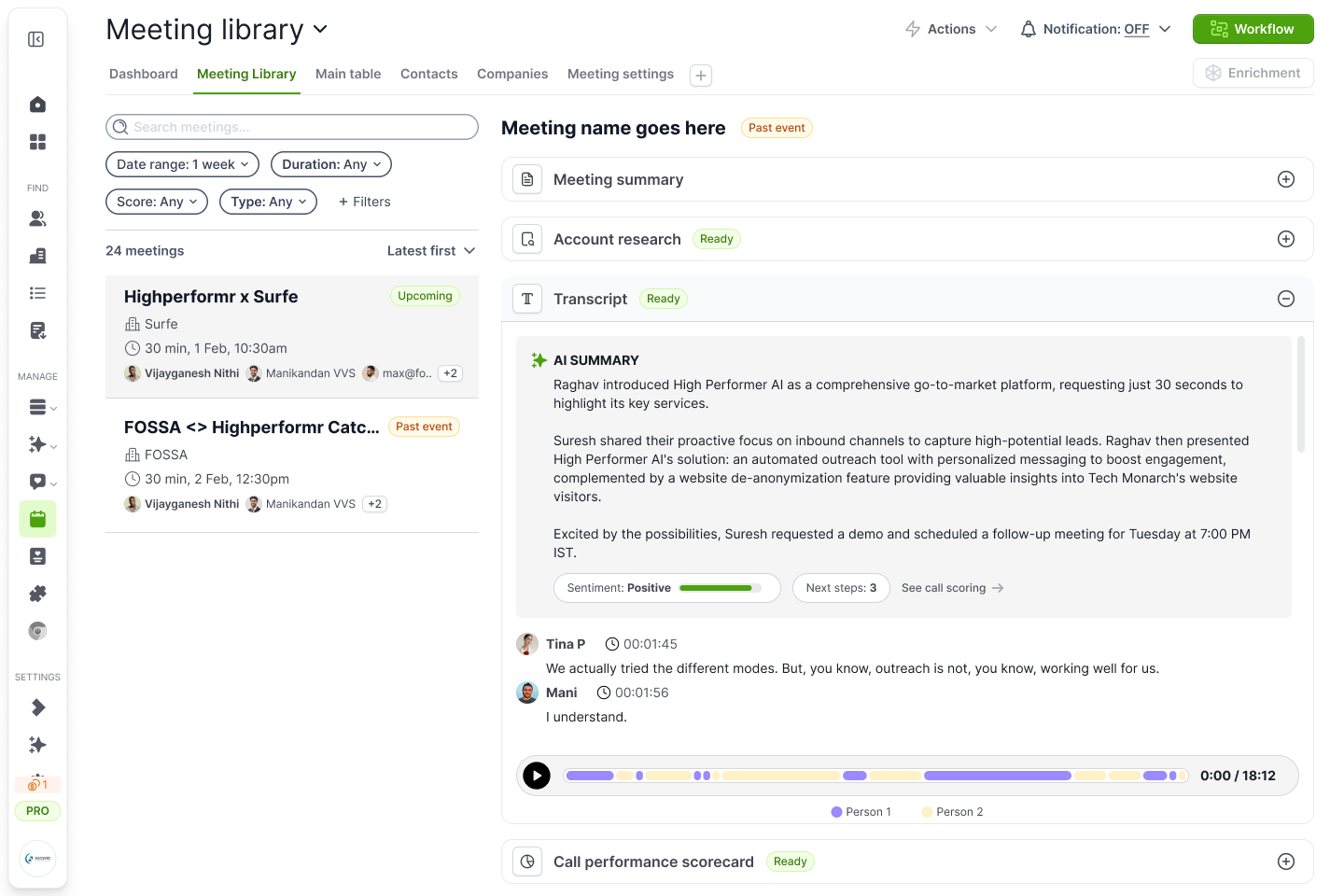
Once the meeting ends, Highperformr processes the recording and delivers these outputs to your Meeting Library:
Transcript
Full conversation with speaker attribution
Meeting Summary
AI-generated recap of key points and decisions
Recap Email
Auto-sent to internal attendees who were on the call
Scorecard
AI evaluation of conversation quality for sales calls
Team setup & shared settings
Highperformr’s Meeting Intelligence is designed for teams. Here’s what you need to know about how it works at the workspace level:
Multiple calendars, one workspace
Each team member connects their own Zoom (or Google/Outlook) account. All connected accounts are visible together under Calendar Integration in the shared Meeting Library — no extra accounts or workspaces needed.
Settings are workspace-wide
Auto-join rules, email notifications, pre-meeting research, recap recipients, scorecards, and recording exclusions are all configured once at the workspace level. Changes apply to all connected accounts equally.
No duplicate notetakers
If two or more workspace members attend the same Zoom call, Highperformr detects this and sends only one Notetaker into the meeting.
Removing your Zoom account
Removing your Zoom account disconnects it from Highperformr and stops the Notetaker from joining future meetings. All transcripts, summaries, and scorecards already in your Meeting Library are preserved.
- 1
Go to Meetings → Settings
- 2
Under Calendar Integration, locate your connected Zoom account
- 3
Click the delete icon next to your account and confirm when prompted
Other team members’ connected accounts in the same workspace are unaffected when you remove your own account.
Common issues
The Notetaker didn’t show up to my meeting
Check your Auto join calendar meetings setting — if set to manual invite only, you’ll need to explicitly invite the Notetaker. Also confirm the meeting was on a calendar account connected to Highperformr. Enable Meeting Notetaker Not Admitted Alert to get notified when the bot is blocked by the meeting host.
No transcript or summary appeared after the call
Verify that cloud recording was active in Zoom — without a cloud recording there’s nothing for Highperformr to process. Also check your workspace credit balance; if credits were exhausted the meeting may not have been processed. Allow a few minutes after the call ends as processing time varies with meeting length.
Pre-meeting research brief wasn’t delivered
Confirm Account Research & Pre-meeting Reminders is toggled on in Meeting Agent settings. At least one external attendee (outside your internal domain) must be on the invite for Highperformr to identify an account to research. Make sure a notification email is configured under Email Notifications and Reminder.
Two team members are in the same meeting — will there be two Notetakers?
No. Highperformr detects when multiple workspace members are on the same Zoom call and sends only one Notetaker. You’ll still get the full transcript and all outputs in the Meeting Library.
Can I configure different settings for different team members?
Not currently. Meeting Agent settings — auto-join rules, notifications, scorecards, and recording exclusions — are workspace-wide and apply to all connected accounts equally.
Still stuck? The Highperformr support team is happy to help.
Contact Support